
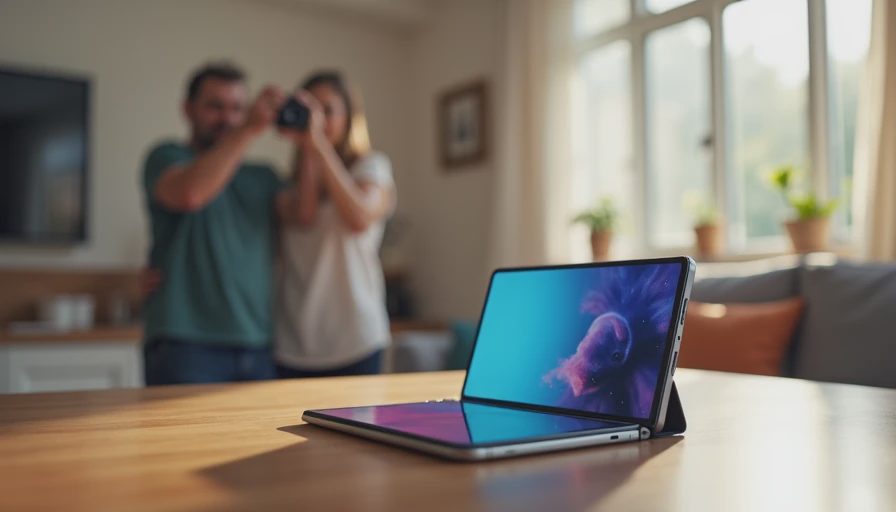
Use the fold to change where the camera can sit and who can see the preview. That is the practical difference to explore before treating iPhone Duo as a conventional camera phone with a larger viewfinder.
A partially folded position can help with hands-free pictures or calls. The outer display can show a subject their framing. Smart Take can capture pictures while you are in the scene yourself.
These are separate tools, not one automatic mode that solves every photograph. This guide follows Apple's published instructions; it does not claim independent image-quality or hinge-stability testing.
ON THIS PAGE
Choose the position before the mode
Take a group picture with Smart Take
Show the subject a preview
Make a hands-free call
Know when a support is still better
Choose the position before the mode
Start with the ordinary distinction: closed for quick outer-screen tasks, open when you want the larger inner view. Then consider whether a partially folded position improves the actual job.
Apple describes book-like, tent, and seated arrangements with different screen orientations. The important point is not memorizing pose names. It is checking which display faces you and which camera faces the subject.
Before starting, put the phone on a clean, stable, level surface. Check for grit, wet areas, and objects that could press against the inner display. Leave room for the charging cable if you need one.
I would not use a narrow railing or a table edge simply because the hinge can hold an angle. A possible position is not necessarily a sensible support.
Goal | Start by checking | Remaining limitation |
|---|---|---|
Hands-free group photo | Stable pose and visible framing | People still need to be in range and well lit |
Subject preview | Correct camera direction and Duo Preview | Preview is not a second set of controls |
Video call | Lens height, microphone clearance, app support | A low table can still produce an awkward angle |
Quick handheld photo | Secure grip and correct lens | Folding does not replace good light |
Take a group picture with Smart Take
Smart Take is designed to photograph you when you hold still or strike a pose, so the person arranging the phone can join the group.
Open Camera and position the Duo securely. When the phone is stable, look for Smart Take; if necessary, open Camera Controls and choose it. Start the feature, enter the frame, and hold a suitable pose.
Apple describes a limited capture session rather than continuous unattended photography. Stop it with the control when you have the pictures you need, then review the results before leaving the location.
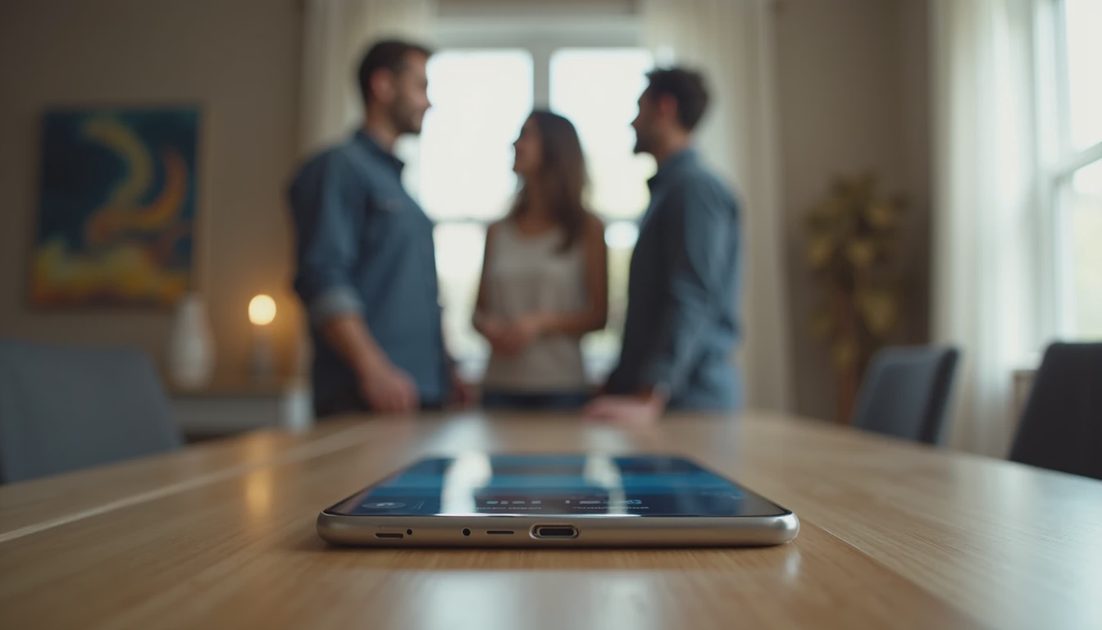
My suggested preparation is to check the frame with one person first. Make sure the edge positions, headroom, and background work. Then bring the rest of the group in.
That takes less effort than discovering afterward that the person nearest the edge was partly outside the shot. Automatic capture can reduce the need to run back to a timer, but composition remains your responsibility.
Show the subject a preview
Duo Preview is useful when someone wants to see their framing before you capture a picture or video.
Open the phone and Camera, then use Outer Display Options on the inner display to select Duo Preview. Point the relevant camera toward the person. The outer screen shows a mirrored preview; capture remains under the photographer's control.
This is not a promise that the subject can operate a full camera interface from the outer screen. Apple describes the preview there without camera controls.
I would use it for small adjustments: whether a person has enough room above their head, whether an object blocks them, or whether the group fits.
Do not let the preview become a distraction from the lens. Someone watching their own image may look away from the camera at the moment you take the photograph.
Framing convenience is not camera equivalence
The foldable design changes how you use the device. It does not make every lens or capture mode equivalent to iPhone 18 Pro.
Before choosing a mode, check which camera is active. A preview on a particular screen does not automatically identify the lens being used.
For a distant subject, consider the actual lens options rather than assuming the large display creates more photographic reach. For a close group, step back or adjust the composition when safe instead of simply applying a large digital zoom change.
The camera's job remains familiar: collect suitable light, focus on the intended subject, and capture at the right moment. A flexible support can help with one part of that job without improving all of it.
Make a hands-free call
For a FaceTime call, Apple's seated arrangement places the inner screen facing you in portrait. Set the device down securely, open the call, and check the preview before settling into the conversation.
Raise the whole support safely if the camera is too low. Do not push the hinge past its normal movement to chase a more flattering angle.
Keep microphones and speakers unobstructed. Soft fabric, a bag, or a crowded desk can undermine an otherwise convenient position.
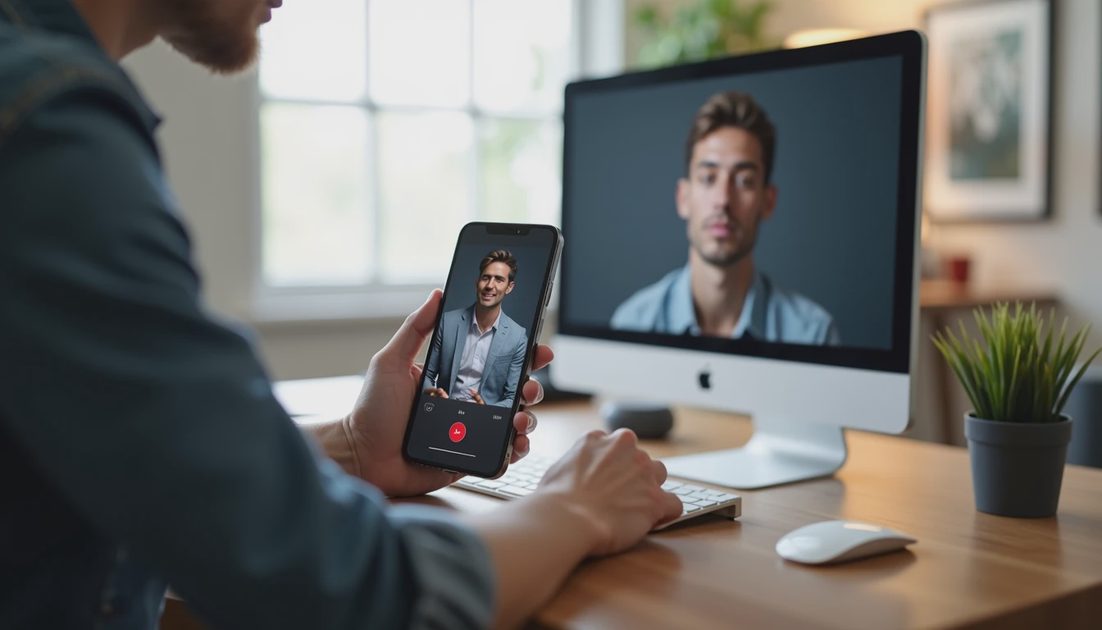
With third-party calling apps, check their current layout and camera selection. A fold-aware FaceTime presentation does not establish identical behavior in every conferencing service.
For an important meeting, make a short ordinary test call through the actual app and account you will use. Verify sound, framing, and whether the screen arrangement remains convenient when call controls appear.
Know when a support is still better
A hinge reduces the need to hold the phone in some situations. It does not replace height adjustment, secure mounting, or a stable surface.
A compatible stand or tripod may be preferable for a long call, repeated framing, or a crowded location. Check the mount's exact device and case support before relying on it.
I would judge the setup by the least convenient moment: tapping a control, connecting power, or adjusting the screen. If those ordinary actions make the device shift, the support needs attention.
Can Smart Take guarantee a good group photo?
No. It helps with capture, but lighting, placement, expressions, and framing still matter.
Can the person on the outer display change every camera setting?
Do not expect that from Duo Preview. Its purpose is to show the subject a mirrored view, not duplicate the photographer's controls.
Will every calling app use the fold in the same way?
No. Verify the app and software version you actually use.
The useful advantage is a new set of positions and viewing options. Choose the one that simplifies the picture or call rather than treating folding as an effect that must appear in every task.