
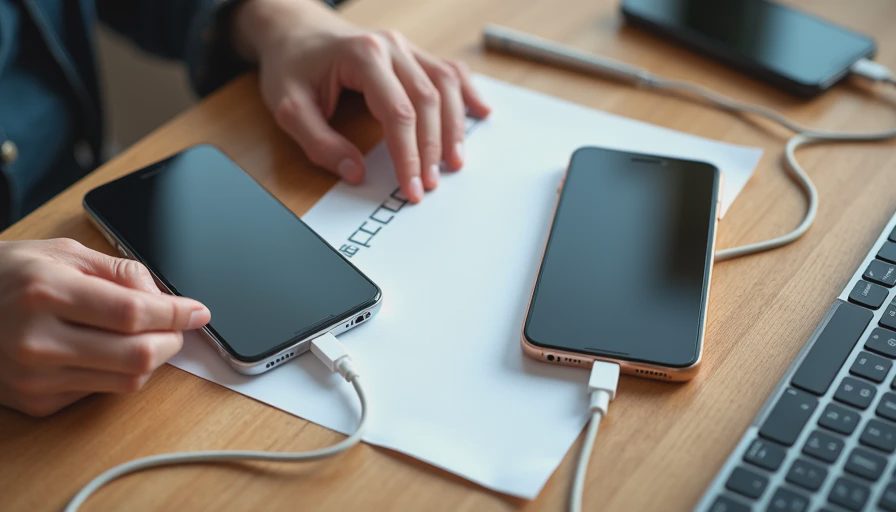
Keep the old phone until the new one has passed a real-life check. A completed transfer screen does not prove that your phone number, authenticator codes, banking access, photos, and watch are ready.
For iPhone 18 Pro or iPhone Duo, the safest move is a three-stage job: prepare a recovery route, perform the transfer, then verify the things you depend on. Erasing the old device belongs at the end.
I would schedule this for a quiet period with reliable Wi-Fi and access to power. Starting immediately before a flight or an important call turns a manageable setup into an unnecessary deadline.
ON THIS PAGE
Before you move anything
Choose the transfer route
Move your number and essential access
Check the new phone properly
Only then retire the old phone
Before you move anything
Confirm that you know the Apple Account credentials and current device passcode. Check your trusted phone numbers and account recovery arrangements while the old phone still works.
Make a current backup through the method you use, and verify its completion date rather than assuming an automatic backup ran overnight. If you use an encrypted computer backup, keep its password somewhere accessible; encryption is not useful if you cannot restore it.
Treat synced information separately. iCloud Photos synchronizes a photo library; it is not an independent archive protected from every deletion. Do not delete photos from the old phone to make migration feel tidier.
For important material, confirm an appropriate additional copy before changing devices. Open a few older photos, recent videos, and necessary documents rather than checking only that thumbnails exist.
Make an access list
Write down the services that can interrupt your day if they fail:
Primary email and password manager.
Banking and payment applications.
Work or school authentication.
Authenticator apps and recovery codes.
Transportation tickets and essential passes.
Do not put passwords or one-time codes into an ordinary shared note. The list should identify what to verify, not create a new place where secrets can leak.
Choose the transfer route
Apple's Quick Start can guide setup from a nearby compatible iPhone. Keep Wi-Fi and Bluetooth available and follow the prompts with both devices accessible.
There is a practical difference between downloading from iCloud and transferring directly. A cloud-based setup can continue downloading content after you reach the Home Screen. A direct migration occupies both devices until its transfer phase completes.
Route | Useful when | Check afterward |
|---|---|---|
Quick Start with direct migration | Both phones are available together | Completion on both devices and app readiness |
iCloud-based setup | You have a current backup and suitable connectivity | Background downloads and synced libraries |
Computer restore | You maintain a usable local backup | Backup password, supported software, and app access |
Transfer duration depends on data and connection conditions. A universal “done in ten minutes” promise is not useful here.
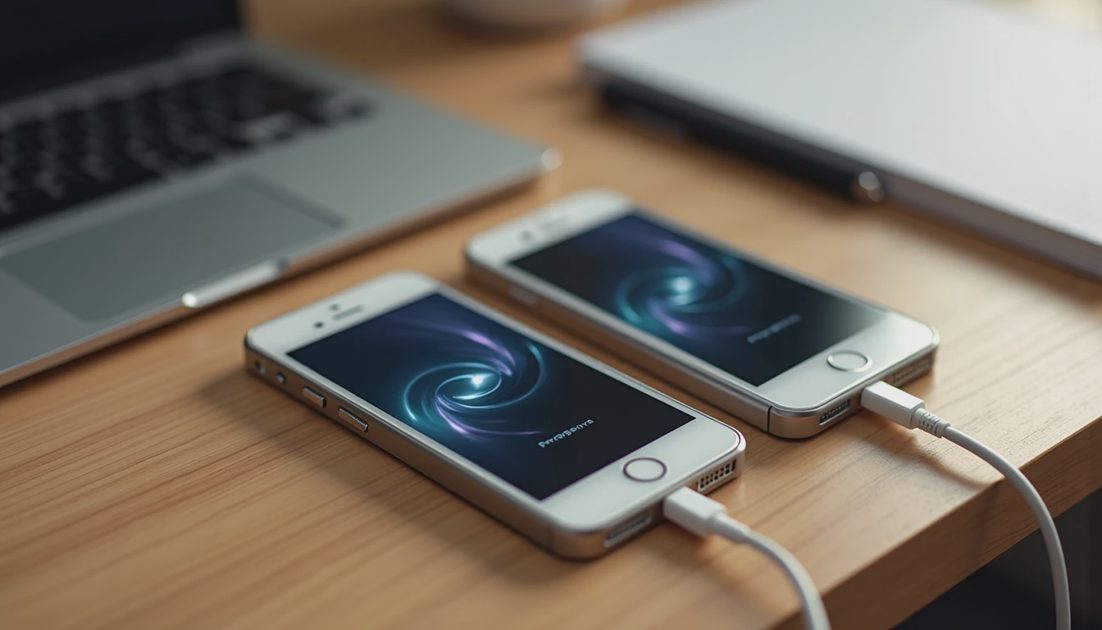
Do not begin repeatedly switching methods because one progress estimate changes. If an error occurs, record it and follow the relevant recovery instructions. Repeating unrelated resets makes it harder to identify what actually failed.
Move your number deliberately
U.S. iPhone 18 Pro models and iPhone Duo use eSIM. Moving the phone's data and activating its cellular plan are related setup tasks, not the same operation.
An available eSIM transfer option depends on the carrier and account. If the carrier does not support the offered route, use its activation process rather than assuming the phone is defective.
Before starting, make sure you can access the carrier account and any required account-holder approval. Business lines, prepaid plans, and employer-managed accounts may have additional conditions.
After activation, test a normal call, incoming text, and mobile data with Wi-Fi temporarily off. Do not make an emergency call as a test.
Keep another way to contact support if the transfer interrupts service. Losing the old line before confirming the new one can also complicate two-factor sign-ins.
Authenticator apps deserve their own check
An app icon appearing on the new phone does not prove that its authentication entries transferred. Different services use different backup, sync, export, or re-enrollment methods.
Follow each authenticator provider's instructions. For work accounts, involve your administrator before removing the old method. Use recovery codes only through the service's proper recovery process.
Test an ordinary sign-in to each critical account while the old device remains available. Confirm that the new phone supplies the needed approval or code.
I would not count a banking app as ready until it opens the correct account and completes its required device registration. Reinstalling an app is not the same as restoring its security relationship.
Give your watch and wallet attention
Follow Apple's new-iPhone pairing process for Apple Watch. Keep the watch, old phone, and new phone available until the pairing and data checks are complete.
Payment cards and some passes may require additional verification. A wallet graphic alone is not proof that a payment method is active.
Check the passes you need soon, then follow the issuer's instructions for anything missing. Avoid sharing screenshots containing payment details while asking for help.
Check the new phone properly
Use a small acceptance checklist instead of browsing the Home Screen and hoping:
Make and receive a normal call.
Send and receive a message.
Open recent and older photos and play a video.
Open essential documents and notes.
Verify email, passwords, authentication, and banking access.
Confirm watch pairing and important wallet items.
Also check storage and ongoing downloads. A device still restoring content may behave differently from one that has finished. Leave suitable power and connectivity available for the remaining work.
For an Android-to-iPhone move, use the supported Android migration route; do not assume the iPhone-to-iPhone sequence transfers everything from another platform.
Only then retire the old phone
When the checks pass, follow Apple's sell, trade-in, or give-away instructions. Account removal, watch handling, cellular-plan choices, and erasure need to happen in the correct context.
Do not manually delete synced photos or contacts as a substitute for properly erasing the device. Those deletions can affect the shared library or account.
Can I erase the old phone once the Home Screen appears?
Wait until essential services work. Apps and data can still be downloading, and authentication may need separate setup.
Will every app stay signed in?
No. Security-sensitive apps can require sign-in, device approval, or re-enrollment.
The end of migration is not the moment the progress bar disappears. It is the moment you can use the new phone without depending on the one you are about to hand over.