
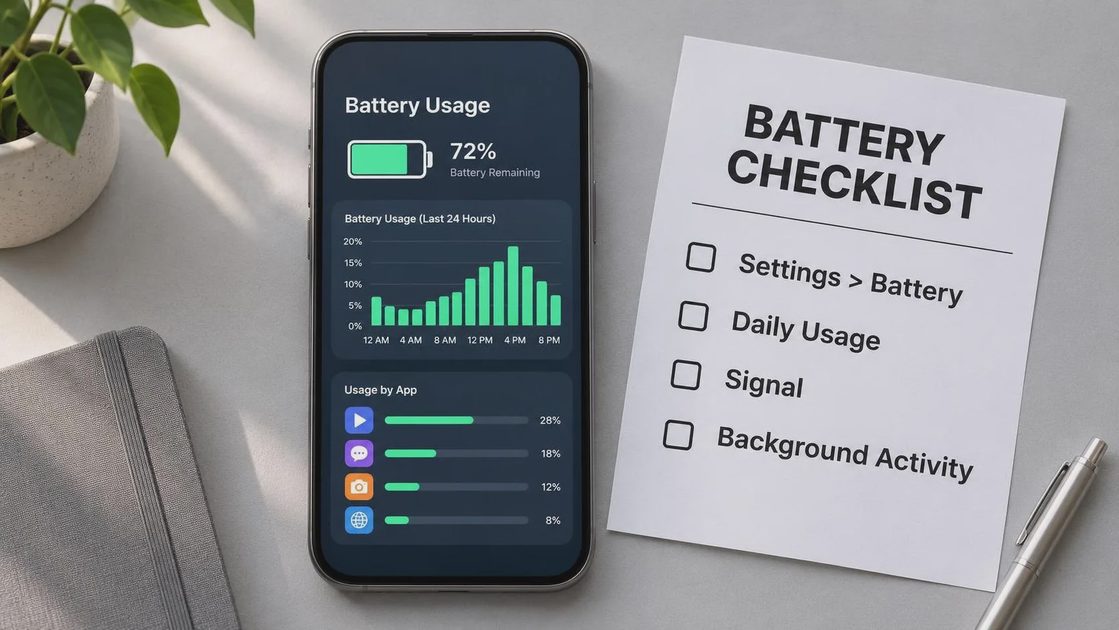
The steps below apply to existing iPhones running current iOS. They are based on Apple’s published support guidance and observable menu paths available on shipping devices. They are not a hands-on test of iPhone 18 Pro or iPhone Duo. Apple has announced both devices, but battery behavior specific to those models—including foldable-display power draw—has not been independently verified at the time of writing (November 2026).
If your current iPhone is draining faster than expected, the checklist below is usable today. If you are waiting for iPhone 18 or Duo, treat the final section as a list of unknowns, not predictions.
First 10 Minutes: Check These Four Things
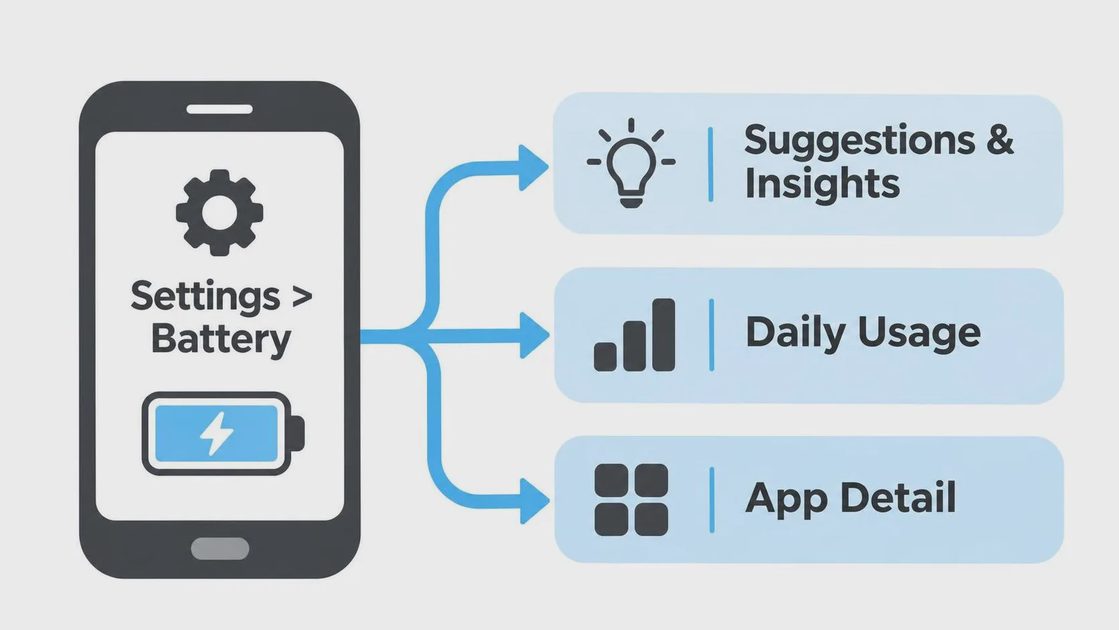
Open Settings > Battery on your current iPhone. Apple’s support documentation identifies this screen as the starting point for understanding unexpected drain .
1. Battery Suggestions and Insights
Just above the usage chart, iOS may display suggestions or Insights. Apple lists examples including “Enable auto-brightness,” “Enable auto-lock,” and “High Brightness” . Insights may show “Ongoing iOS Update” or “Ongoing Device Setup,” indicating background work that Apple says should resolve .
2. Daily Usage vs. Your Baseline
The Daily Usage chart compares today’s battery use with your last seven days. Apple’s interface labels this comparison explicitly . A high percentage next to one app is not automatically a fault; it may simply be the app you used most during a light day.
3. Signal Quality
Apple’s battery details include usage types labeled “No Mobile Coverage and Low Signal” when the device was searching for service . Weak cellular signal is a documented contributor to battery use, not a user error.
4. Screen Brightness and Auto-Lock
Check Settings > Display & Brightness. Apple’s own suggestions flag high brightness as an energy drain and recommend auto-brightness and auto-lock where appropriate . Reduce brightness to a level you can still read comfortably; disabling the display entirely is not a practical recommendation.
Path reference (current iOS): Settings > Battery > (Suggestions/Insights) > Daily Usage > tap an app or time period for detail .
Separate Normal Drain from a Problem
Apple explicitly states that after a software update, certain tasks continue in the background and may affect battery life and thermal performance. The company advises waiting “a few days” before judging post-update battery life . The Ongoing iOS Update Insight exists precisely to signal this temporary state.
What Apple does not provide is a universal hour count or percentage threshold that separates “normal post-update indexing” from “a problem.” No such figure appears in Apple’s public support documentation. Any article claiming a specific number—for example, “drain resolves in exactly 48 hours” or “more than 5% per hour is abnormal”—is presenting an estimate as fact.
A practical distinction you can observe yourself:
Temporary work: Drain coincides with a visible Insight, a recent migration, or a large app download. Apple’s interface acknowledges the background activity.
Repeatable pattern: Under similar conditions (same apps, comparable signal, similar screen time), the phone loses charge faster than your own previous baseline, without an active Insight.
The second case warrants the recording method below.
What to Record
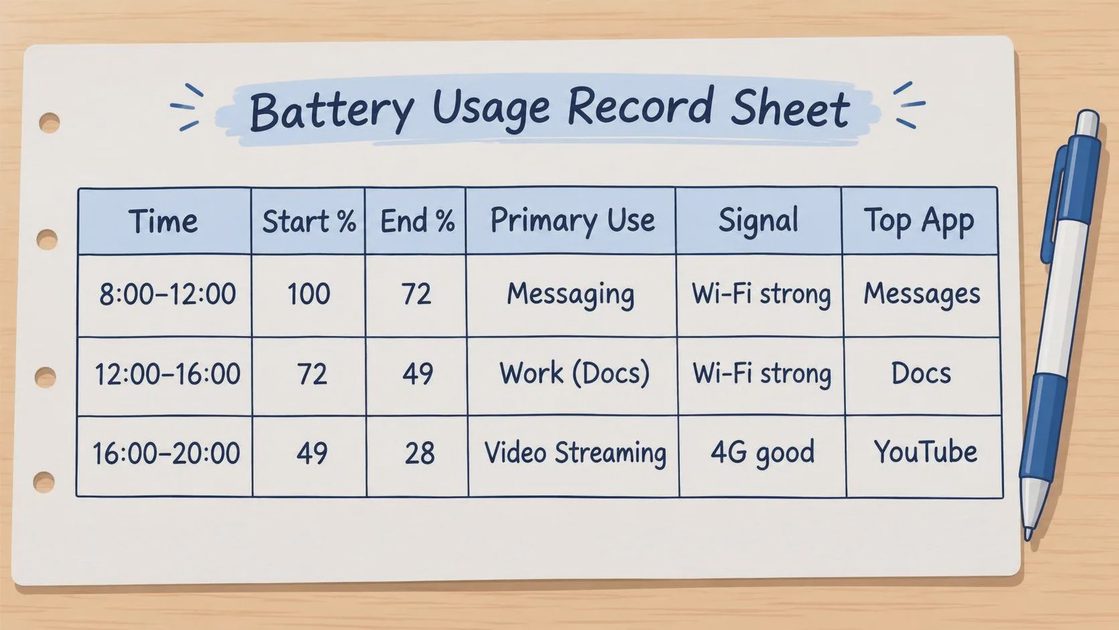
Anecdotes (“it feels worse”) do not survive contact with a support agent or a Genius Bar appointment. Use this table for three to five days. It is designed to be reproducible without special tools.
Time | Start % | End % | Primary Use | Signal | Top App (Battery) |
|---|---|---|---|---|---|
8:00–12:00 | 100 | 72 | Messaging, browsing | Wi-Fi strong | Messages |
12:00–17:00 | 72 | 41 | Navigation (cellular) | Cellular weak | Maps |
17:00–22:00 | 41 | 15 | Video streaming | Wi-Fi strong | YouTube |
How to fill it: Record the start and end charge, the main task, the dominant network condition (Wi-Fi strong/weak, cellular strong/weak), and the top battery-consuming app from Settings > Battery > View All Battery Usage .
What this reveals: If Maps appears with high usage during a weak-signal commute, the pattern points to signal workload, not a defective battery. Apple’s own usage labels will likely show “Low Signal” under that app . If a social app appears with high Background Activity despite minimal on-screen time, the relevant setting is that app’s background refresh permission—not a system-wide battery defect.
What Not to Assume About iPhone 18 / Duo
Apple has announced both devices. The following remain unverified for battery behavior as of November 2026:
Battery capacities. Apple does not publish mAh figures in its iPhone marketing. Third-party reports based on regulatory filings claim 4,288 mAh for iPhone 18 Pro and 5,567 mAh for iPhone 18 Pro Max , and 4,883 mAh for iPhone Duo . These figures are not confirmed by Apple in its public specifications and should be treated as third-party observations, not official data.
Foldable-display power draw. Apple’s announced battery figures for iPhone Duo distinguish between inner and outer display video playback . This confirms that screen choice affects endurance. It does not confirm how much additional drain a user will experience in mixed daily use, nor does it establish a percentage difference for real-world tasks like reading, split-view multitasking, or camera preview on the outer screen.
System menu paths. The iOS 27 interface for iPhone Duo includes fold-specific features such as Split View . Whether battery-related menus gain fold-specific entries—for example, per-display usage breakdowns—has not been documented in Apple’s public support pages at the time of writing. Do not expect a “Duo Battery Mode” switch until Apple publishes one.
The practical implication: If you are buying an iPhone 18 or Duo, use the checklist above on your current phone first. If your current phone exhibits a repeatable, well-documented drain pattern under comparable conditions, that record is useful for comparison later. If your current phone behaves normally, you have a baseline against which to judge the new device after its own setup period settles.
When to Seek Support
Apple’s support guidance for battery drain recommends checking for suggestions and Insights, reviewing daily usage by app, using Wi-Fi when possible, and giving the device a few days after an update before concluding there is a problem .
Contact Apple Support or visit a service location if:
The drain persists under ordinary use for more than a few days after setup or update, with no active Insight.
Battery health shows a service message in Settings > Battery > Battery Health & Charging.
You observe swelling, smoke, or a burning smell. Apple’s safety guidance treats these as immediate hazards, not ordinary battery behavior.
For a support conversation, bring the recording table above. “Battery drains fast” is a complaint. “Under comparable Wi-Fi conditions, the phone lost 45% in four hours with Messages as the top consumer, while my previous baseline was 25% in the same window” is a diagnostic starting point.