
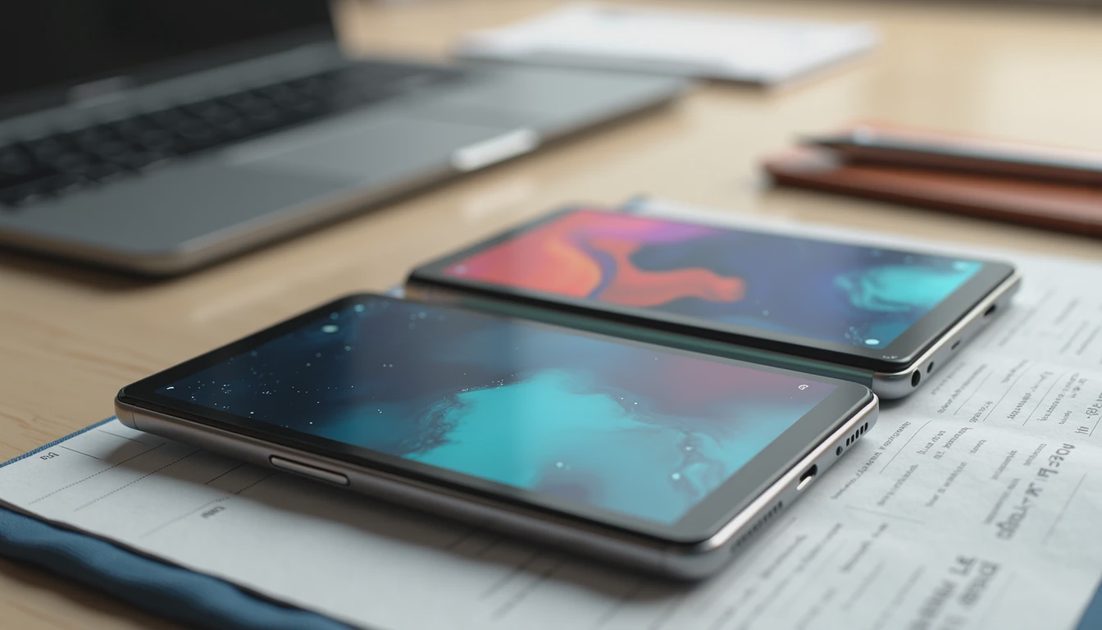
Open iPhone Duo in landscape to use two supported apps side by side. Split View gives each app half the inner screen. The useful starting point is a task that genuinely needs two sources, not opening extra windows because the phone can.
My suggested first pair is Mail and Calendar. One supplies the invitation details; the other lets you check availability. Safari and Notes make another practical pair when you need to collect information without repeatedly switching away.
The steps below follow Apple's iOS 27 user guide. This is a documentation-based tutorial, not a claim that every third-party app has been tested.
ON THIS PAGE
Open your first app pair
Use Mail and Calendar together
Research with Safari and Notes
Manage pairs and full screen
When Split View is not helping
Open your first app pair
Unfold the phone and hold the inner display in landscape. Begin with an Apple app so you can learn the system interaction before adding third-party compatibility questions.
From the Home Screen, touch and hold the first app and choose Open in Split View. Then choose the second app from the Home Screen or App Library.
You can also begin inside an app: swipe upward from the bottom, pause near the center, and continue moving that app toward either side. The other side reveals a place to select the second app.
The important result is two active apps sharing the screen equally. If you only see a sidebar inside one app, that is an app layout, not necessarily two-app Split View.
Keep those ideas separate. Mail showing a mailbox list beside a message is different from Mail occupying one half while Calendar occupies the other.
Use Mail and Calendar together
This pair is useful when a message contains a proposed time, location, or booking reference. Read the source on one side and make the calendar entry on the other.
I would approach it in this order:
Open the relevant message in Mail.
Put Mail into Split View and choose Calendar.
Check the proposed day against your existing events.
Create or edit the event, then compare its details with the message.
Save and reopen the event to confirm the result.
Those are workflow steps, not a promise of automatic extraction. You can type or copy appropriate information using the tools supported by the current apps.
Check time zones when the sender is elsewhere. A larger screen makes comparison easier; it does not decide which time zone the sender meant.
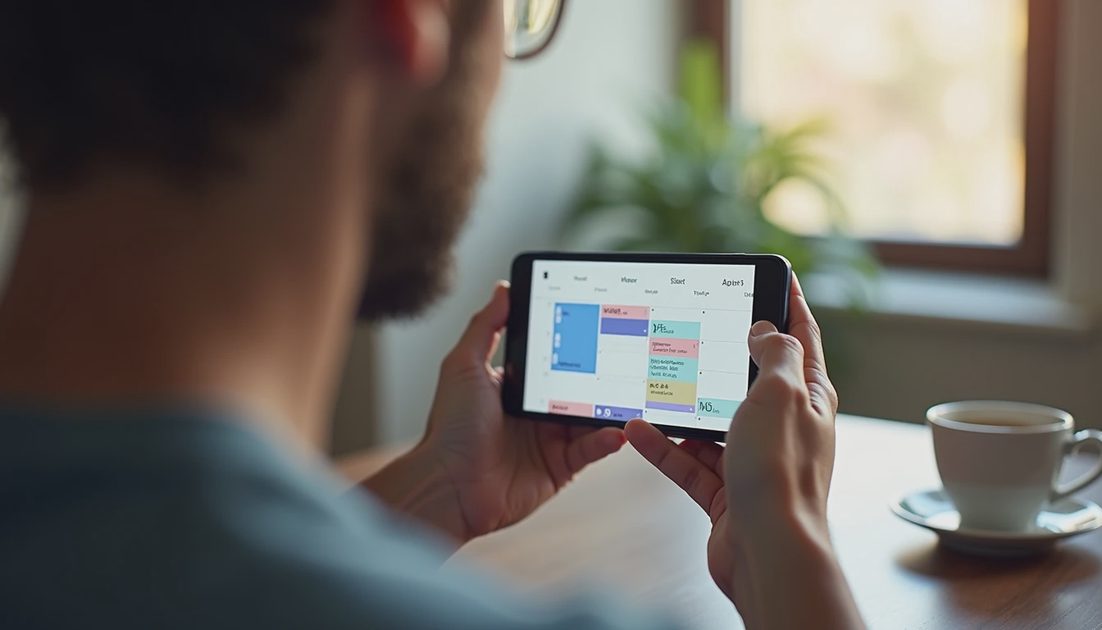
For an invitation involving other people, review recipients before sending. Keeping two apps visible does not remove the consequences of an incorrect address or date.
Research with Safari and Notes
Safari and Notes work well when you are making a short decision: comparing appointment information, planning a route, or recording requirements from a website.
Keep the source open while adding a brief note. Record the relevant detail and enough context to recognize it later. Copying an entire page usually makes a less useful note than identifying the answer you needed.
Task | First app | Second app | Result to verify |
|---|---|---|---|
Schedule from an email | Calendar | Date, time, place, and saved event | |
Collect website details | Safari | Notes | Accurate summary with identifiable source |
Compare two pages | Safari window | Another supported Safari window | Correct product or booking on each side |
Refer to a document | Files | Notes | Relevant detail copied without losing context |
For example, if you are collecting store hours, record the location and the date you checked. A neat two-column view does not protect you from mixing details from different branches.
My rule is to keep the note shorter than the source. The point is to reduce the next decision, not preserve every sentence you opened.
Manage pairs and full screen
Apple's guide allows supported apps to open another window of themselves, including Safari, Mail, Notes, and Files. That does not mean every app can be duplicated.
With a supported app already in Split View, select its icon again to open another window beside it. Use this only when two views of the same information source are genuinely helpful.
To pair two apps for reopening together, tap the center divider. To return one app to full screen or remove the pairing, drag the divider to an edge.
These controls are worth learning before adding complicated workflows. Accidentally retaining a pair can make a later app launch feel surprising if you expected full screen.
The normal side-by-side arrangement is landscape and evenly divided. Do not follow iPad window-resizing instructions and assume they describe this iPhone feature.
When Split View is not helping
The keyboard changes the available working space. A pair that looks comfortable while reading may feel crowded once you start entering a long response.
For a short appointment or note, keeping the reference visible can still be worthwhile. For several paragraphs, I would consider returning the writing app to full screen.
The best arrangement is the one that reduces work. If you are repeatedly adjusting the phone, hiding the keyboard, and hunting for controls, ordinary app switching may be simpler.
Likewise, a compact app layout is not automatically a good Split View layout. Third-party support can vary with the app and its current version.
If the expected option is missing
Check the physical position first: the phone should be open with its inner screen in landscape. Then check the installed iOS and app versions and try a supported Apple app pair.
If that pair works, narrow the question to the other app rather than treating the whole phone as broken. Ask the developer whether the current release supports the feature you need.
Do not reset the device as your first response to a missing app option. A reset cannot create a feature an app has not implemented.
A small habit worth keeping
After using a pair, verify the work in the destination app. Open the saved note, calendar event, or draft by itself.
That final check catches a common problem: confusing information being visible with information being saved. Two windows make reference easier, but the destination still needs to contain the result.
Does every app support two windows?
No. Multiple windows depend on the app. Two different supported apps and two windows of one app are separate capabilities.
Is Split View always better than full screen?
No. It is most useful when both sources need to remain visible. For focused reading or longer writing, full screen can be the less annoying choice.
Start with one useful pair, learn how to leave it, and build from there. Multitasking earns its place when it removes a repeated interruption.