
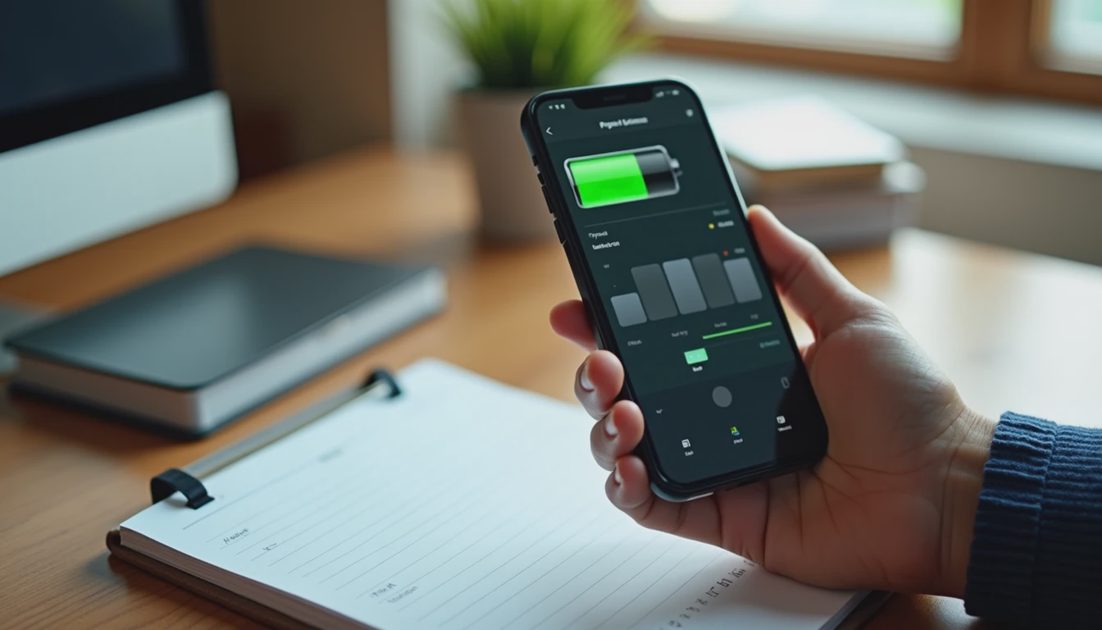
First separate a busy new-phone period from a repeatable battery problem. Restoring data, downloading apps, syncing a library, or finishing an update can change energy use. A phone that keeps losing charge unexpectedly after that work is a different case.
On iPhone 18 Pro or iPhone Duo, begin in Settings > Battery. Match the information there to what you actually did, then make one targeted change at a time.
I would not begin by disabling every useful feature. The aim is to identify excessive or unexpected activity, not turn a new phone into a device you no longer enjoy using.
ON THIS PAGE
Identify when the drain began
Read usage in context
Check signal, display, and background work
Give Duo its own comparison
Escalate with useful evidence
Identify when the drain began
Write down whether the behavior began after migration, an iOS update, an app update, or an otherwise ordinary day. Note the software version and any visible Battery suggestions or Insights.
Apple describes background work after setup and updates as a possible temporary influence. That explanation should not become an excuse to ignore every symptom indefinitely.
Starting situation | What to establish | Useful next observation |
|---|---|---|
New phone migration | Is downloading or syncing still active? | Behavior after that work finishes |
Recent iOS update | Is an update-related Insight present? | Similar use over the following days |
One app changed | Did its activity also change? | Whether a targeted app update or setting helps |
Persistent ordinary-day drain | Can you describe a repeatable pattern? | Usage and signal under comparable conditions |
Do not promise yourself a fixed twenty-four-hour recovery. The amount of work varies. If the problem is severe, persistent, or accompanied by a physical warning, seek help rather than waiting for an arbitrary deadline.
Read usage in context
Open Battery and inspect the available usage information, including activity associated with individual apps. Distinguish time spent actively using an app from work occurring in the background where the interface provides that detail.
A high percentage beside an app does not automatically mean it is faulty. It may be the app you used most during a day when little else happened.
Likewise, a short period with a large percentage drop needs context. Was the phone navigating, uploading video, recording, or searching for service?
I would compare similar routines rather than neighboring calendar days alone. A quiet office day and an outdoor trip do not create a fair battery comparison simply because both started at 100 percent.
Record the starting and ending charge, approximate screen use, major tasks, and access to Wi-Fi or cellular service. Those observations make the graph easier to interpret.
Signal is part of the workload
Poor cellular coverage can contribute to battery use. A commute with weak or changing service may behave differently from a day on reliable home Wi-Fi.
Check whether the drain lines up with the route or location. Test ordinary use on a trusted Wi-Fi network when practical, without changing several other settings at once.
Do not use Airplane Mode as a permanent “fix” if it prevents calls you need. It can be an explanatory comparison in an appropriate situation, but it changes what the phone is available to do.
If the problem appears specific to cellular service, check carrier settings, software, and your carrier's support information. Replacing the battery is not the first conclusion to draw from a location-dependent pattern.
Check the display without blaming it automatically
High brightness and long periods with the screen awake can consume substantial energy. Review the phone's suggestions for brightness and auto-lock where available.
Use settings that remain comfortable and accessible. Reducing the display until reading becomes difficult is not a practical recommendation.
Always-On behavior, frequent notifications, and lengthy media sessions may be relevant to your pattern. Investigate the settings connected with what you observe rather than switching off unrelated features.
I would ask a simple question: did the phone spend more time visibly working than I realized? A large screen can make an activity more appealing, which changes habits even before any hardware efficiency difference is considered.
Give Duo its own comparison
Do not assume the Duo's inner screen is the cause simply because it is larger. Compare the activities performed on it.
Reading a downloaded book, running two apps, navigating on cellular, and streaming a bright video are different workloads. “I used the inner display” is not a complete description.
Try a routine you can describe and repeat. Note which screen was used, approximate brightness, network, audio, and whether the task involved streaming or local content.

This is a personal observation method, not a laboratory benchmark. Do not convert an informal comparison into a universal claim that one screen uses a particular percentage more power.
If you discover that you simply spend longer reading or watching on the new device, decide whether the benefit is worth additional charging. More use and abnormal drain are different findings.
Background work needs a specific response
If one app's background activity looks out of proportion to your needs, check its settings and update information. Consider whether it is uploading, tracking, downloading, or maintaining a task you actually requested.
Change the relevant permission or background option deliberately. Review what the app may stop doing before switching it off.
I would not routinely force-close every app as a generic battery ritual. It produces more actions without necessarily answering why the energy was used.
For a new problem, update the relevant app when a suitable release is available and restart normally if appropriate. Avoid deleting data-heavy apps before understanding what is stored locally and what can be restored.
Escalate with useful evidence
If the pattern persists under ordinary use, collect a short support note: phone model, iOS version, when it began, relevant Battery observations, signal conditions, and changes already tried.
Check battery health information and any service message the phone provides. A new device can still require support; age alone does not settle the diagnosis.
If there is swelling, smoke, or a burning smell, stop using the device and seek appropriate support. Ordinary warm operation and a physical hazard should not be treated as the same category.
Should I compare against Apple's video-playback figure?
Not as a promise for a mixed-use day. Messaging, navigation, signal, camera use, and background activity create a different workload.
Should I reset everything at once?
No. Targeted changes preserve evidence and make it easier to tell what helped.
The useful outcome is a pattern you understand: temporary setup work, a demanding routine, a specific app or connection issue, or a condition that deserves service.